
How to Build a MLB Listing -
This process should be completed immediately after a new sale email is received.
Step 1 — Locate the New Sale in the CRM
Open the CRM
Select the Maryland Local Marketing account (NOT Maryland Local Leads)
Click the Opportunities tab on the left
At the top, select MLB Featured/Plus Onboarding
Locate the new sale
Click directly on the underlined opportunity name & assign yourself to the contact
Copy the business website and open it in a new tab to begin gathering information.
Step 2 — Gather Business Information
Open all relevant links before starting:
Business website
Social media pages
YouTube (if available)
Google Business Profile
Collect as much information as possible including:
Services / offerings
About section
FAQs
Address (if not on website — use Google or Facebook)
You may also screenshot content and upload into chat if copying text is difficult.
Step 3 — Create Logo Files in Canva
Download the business logo
Open the Canva stack “Logos and More”
Create TWO files:
Logo Version
Enlarge and center the logo
Save with transparent background
Name format:
Business Name Logo
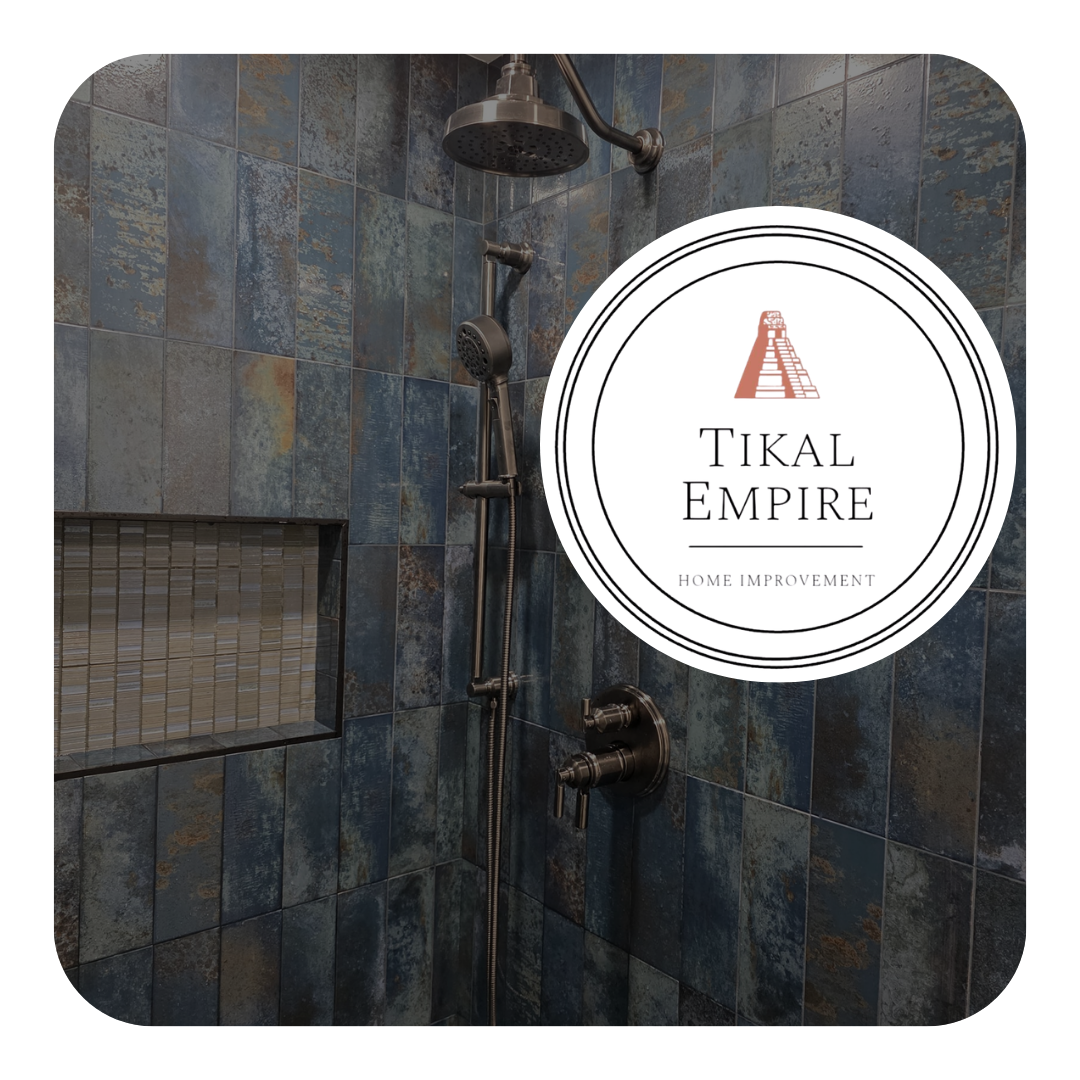
Product Image Version
Duplicate the logo page
Add background image of something aesthetically pleasing pertaining to business
Round corners or photo to 100
Add logo somewhere on top of the photo
Save with transparent background
Name format:
Business Name Product Image
Example:
Step 4 — Log Into Website & Create Listing
Log into marylandlocalbusinesses.com (login located bottom left)
Go to Dashboard
Navigate to Products → All Products
Click Add New Product
Enter the Business Name
Step 5 — Generate Listing Content Using Chat
Open the Business Listing Creation chat (Sophia’s Work folder)
Use the prompt:
“Time for a new listing — Business Name”
Copy/paste ALL relevant business information into chat
Include:
Website text
About content
Services
FAQs
Social descriptions
Address (if found elsewhere)
Wait for the generated content.
Step 6 — Upload Images
Upload Product Image (top right image slot)
Upload Logo (business onboarding section)
Banner Image
Prefer Facebook banner
If unavailable, use a horizontal stock image
Upload into Banner Image section
Step 7 — Build Listing Body Content
From chat output, copy these sections into the listing body:
About
Services / Offerings
Why Choose
Formatting rules:
First heading = Heading 1 (Bold)
Next headings = Heading 2 (Bold)
Remove unnecessary bold text
Add:
Map link (copied from an existing listing)
Social media icons using Font Awesome → Brands
Paste profile URLs into icons
Step 9 — Complete SEO Section
From chat output:
Add Focus Keyphrase
Add Meta Description (shorten if too long until indicator turns green)
Add Keyphrase Synonyms
Add 4 Related Keyphrases + Synonyms
If fields glitch:
Save
Refresh
Continue
Step 10 — Add Short Description & Business Details
Add:
Product Short Description
Address (leave blank if none)
Phone
Email
Website
Ensure no extra spaces in address fields.
Step 11 — Add Featured Service Section
Add Service Name
Add description
Add button label in price field
Add booking/contact link
Upload service image (website, Facebook, or stock)
Step 12 — Add Product Gallery Images/Videos
Locate Product Gallery
Gather as many photos as it takes to take up the length of the description/words (Usually 6-10 images) (Horizonal photos are better)
If you can locate a horizontal video please add that in the video embed code section
Step 13 — Assign Categories & Counties
Uncheck Uncategorized
Check Businesses
Select appropriate category
If none fit → select More
Add counties based on business location.
Step 14 — Connect Google Reviews (Trustindex)
Log into Trustindex
Connect Google Reviews using Google Business Profile link
Create review widget
Clone widget
Rename widget to business name
Copy TOP code snippet
Paste into Review Code Snippet section (Text mode)
Save / Update
Reload listing to confirm reviews appear.