
How to Boost a Spotlight Post - Copy
Scope
This SOP applies to all Maryland Local Businesses Featured and Plus Plan clients.
Once a client’s Spotlight Post has been published through the Social Planner, the next step is to run that post as a paid advertisement.
There are important differences between the Featured and Plus plans that must be followed.
Plan Differences
Featured Plan
Spotlight posts are set up as recurring posts every quarter (every 3 months)
The post must be manually boosted once per quarter
Ad budget: $20 lifetime
Ad duration: 2 weeks
Plus Plan
Spotlight posts are manually posted each time
A new graphic is created for each promotion
The post must be manually boosted each time
Ad budget: $50 lifetime
Ad duration: 2 weeks
Step 1 — Locate the Post in the Social Planner
Once the post has gone live (either manually posted or via recurring schedule):
Go to the CRM Social Planner
Locate the spotlight post
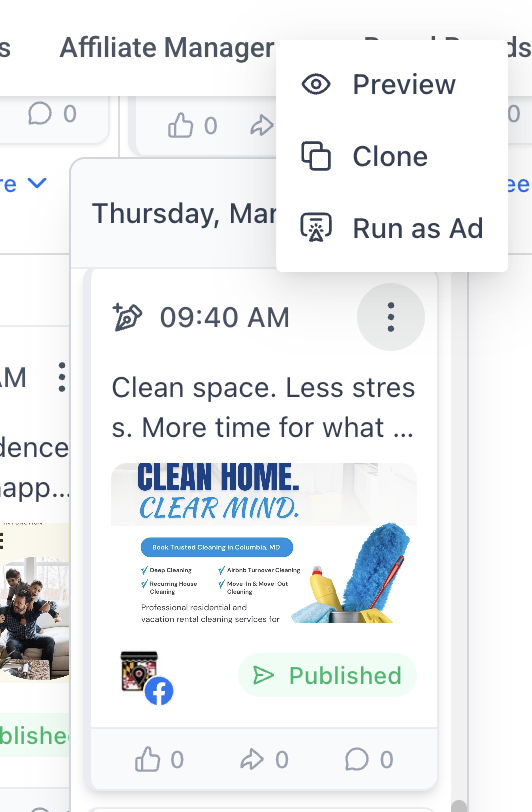
Click the three dots on the post that was published to Facebook ONLY
Do not select:
Instagram post
Google Business Profile post
Networking Portal post
Click Run as Ad
Step 2 — Redirect to Ad Manager
A message will appear indicating you are being redirected to Ad Manager
Click the Continue button
Step 3 — Choose Ad Platform
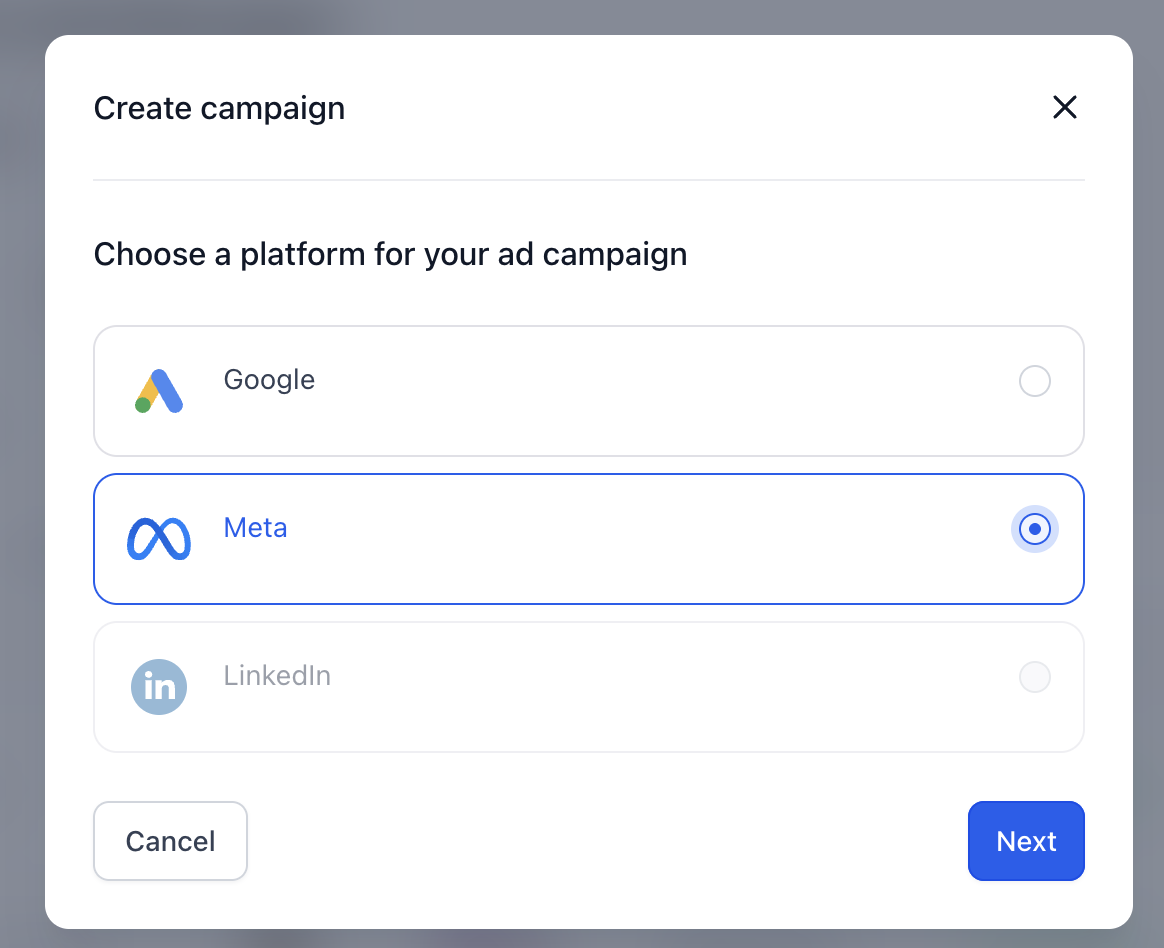
Select Meta (Facebook/Instagram)
If Google is selected automatically, switch it to Meta
Click Next
Step 4 — Campaign Level Setup
You will now see the three campaign levels:
Campaign
Ad Set
Ad
At the Campaign level:
Rename the campaign to:
[Business Name] CampaignChange the Objective to:
Website Traffic
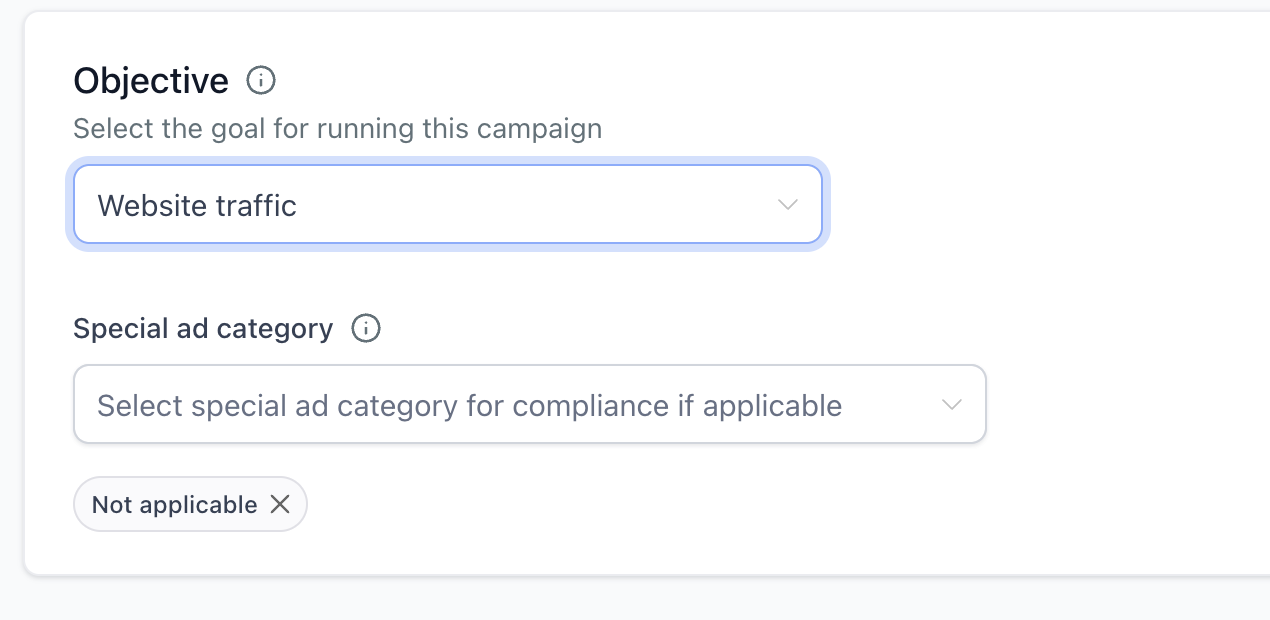
Do not leave this set to Lead Generation.
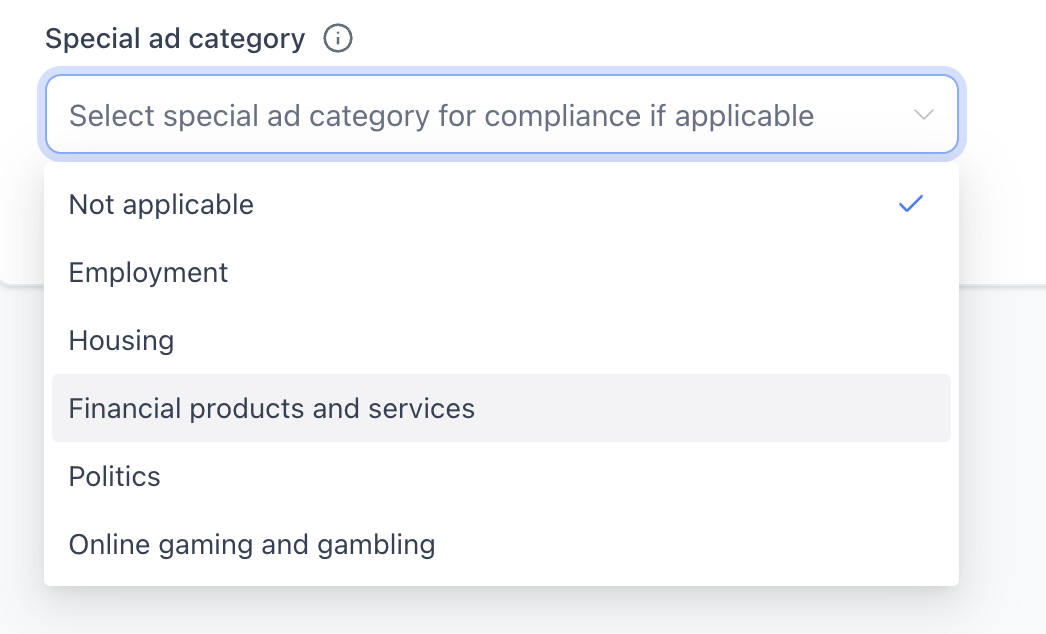
Select the Special Ad Category if applicable.
Examples:
Real Estate → Housing
Financial Services → Financial Products & Services
If unsure, confirm with a team member before continuing. Selecting the wrong category may cause compliance issues.
Step 5 — Ad Set Level Setup
Rename the Ad Set to:
[Business Name] Ad SetChange the budget type:
Switch from Daily Budget to Lifetime Budget
Enter the correct budget:
Featured Plan → $20
Plus Plan → $50
Set the Date Range
This must be completed carefully.
Start Date and Time
Set the start date to today’s date
Set the time to at least 15 minutes in the future
You may click “Now” and manually add 15–20 minutes
If the start time is set too close to the current time and publishing is delayed, the ad may fail to run.
End Date
Set the end date to 2 weeks after the start date
Step 6 — Audience Targeting
Adjust audience settings based on the business.
Research the business service areas and add appropriate locations
Add relevant targeting including:
Interests
Demographics
Behaviors
Age range
Gender (if applicable)
A helpful method is to paste the business listing into ChatGPT and request targeting suggestions.
Step 7 — Ad Level Setup
Rename the ad to:
[Business Name] [Month Year] AdReview the Primary Text
This often auto-populates
Confirm it is accurate and properly formatted
Add the Website URL
Enter the client’s website
If they do not have a website, use the business listing link
Step 8 — Final Review and Publish
Before publishing, confirm:
Budget is correct
Dates are correct
Objective is set to Website Traffic
Audience targeting is appropriate
Website link is correct
Special Ad Category is selected if required
Click Review
Click Publish